





Listen to this article
Understanding how to enhance your Wi-Fi network is essential, especially for multi-person households or offices where several devices operate simultaneously. This article aims to provide you with the necessary information to improve your router and access point configuration for optimal performance. Proper network layout and settings can significantly affect your overall connectivity, ensuring that you experience minimal downtime and maximum bandwidth.
- Place router and access points centrally, elevated, away from appliances and obstacles to maximize coverage and reduce interference.
- Use 5 GHz for high-bandwidth tasks and 2.4 GHz for range; enable dual-band and test both for best device performance.
- Enable QoS, update firmware, adjust channel width and channels, and disable unused features to prioritize traffic and improve stability.

One of the first steps to take is to ensure your devices are placed correctly. Positioning your router in a transitional area, such as a central corner of your home or office, allows for better distribution of signals. Additionally, utilizing extenders or repeaters, like Eero, can help cover larger areas. This becomes particularly important if you have dead zones or weak signals in certain regions of your space.
Furthermore, understanding your network’s operation through features such as automatic scheduling for device usage can be a game-changer. For instance, if you tend to download large files during certain hours, configuring your system to prioritize bandwidth during that time can enhance performance. By leveraging different bands and widths available on your router, you can also deliver more stable streaming experiences for all users without disruptions. The following guide will outline simple yet effective settings to optimize your Wi-Fi, ensuring you can enjoy seamless connectivity for all your devices.
📶 Recommended Wi-Fi Devices to Improve Coverage, Speed & Stability
| Product | Category | Why It’s Useful | Best For |
|---|---|---|---|
| Eero Mesh Wi-Fi | Mesh System | Automatically optimizes coverage across rooms | Large homes & families |
| TP-Link RE550 | Wi-Fi Extender | Eliminates dead zones with strong signal boost | Apartments & long corridors |
| NETGEAR EX3700 | Wi-Fi Extender | Compact extender for transitional areas | Small spaces |
| TP-Link TL-WR841N | Router (2.4 GHz) | Reliable basic router for everyday use | Budget setups |
| Dual-Band Router | Stable performance with multiple devices | Streaming & gaming | |
| TP-Link Archer AX6000 | Wi-Fi 6 Router | Advanced QoS and traffic prioritization | Busy households |
| NETGEAR Nighthawk RAX200 | Wi-Fi 6 Router | Handles heavy traffic with minimal latency | Power users |
| TP-Link Deco X20 | Mesh Wi-Fi 6 | Balanced coverage and speed on multiple floors | Multi-floor homes |
| Netgear Orbi RBK50 | Mesh System | High-speed backhaul for wide coverage | Large houses |
| Linksys Velop MX8000 | Mesh Wi-Fi 6 | Premium stability for smart-home devices | Smart homes |
| Rockspace Wi-Fi Extender | Repeater | Simple, affordable coverage extension | Small dead zones |
Enhancing Your Router Settings for Better Wi-Fi
Improving your Wi-Fi starts with a few crucial changes to your router settings. This guide is aimed at gamers and anyone in an office environment, helping you quickly configure your device for optimal performance. First, consider adjusting your frequency band. If your router supports dual-band technology, you can choose between 2.4 GHz and 5 GHz bands. The latter is ideal for low-latency gaming or streaming large files, while 2.4 GHz can cover greater distances, making it useful for larger homes or when devices like smart doorbells and sensors are nearby.
Next, updating your router’s firmware is essential. Manufacturers regularly release updates to fix security vulnerabilities and improve performance. A quick visit to your router’s admin panel typically makes this step easy. Also, enable Quality of Service (QoS) settings. These settings prioritize traffic so that gamers playing online can enjoy smoother gameplay, even when multiple devices like phones, printers, and appliances are running simultaneously. For example, configuring QoS might allow your gaming console to receive a higher allocation of bandwidth when you are playing, rather than when other low-end devices are in use.
If you experience interference from neighboring networks, consider changing the channel settings of your router. Tools like Wi-Fi analyzers can help you identify the least congested channel. It’s a simple modification that can make a significant impact on your network stability. In case of still experiencing problems, you might want to consider the use of repeaters or range extenders. Products like the TP-Link RE450 can extend your Wi-Fi coverage, ensuring that even the most remote parts of your house remain connected.
Lastly, regular troubleshooting is vital. If you notice a drop in performance, look into possible sources of interference such as microwave ovens or Bluetooth devices. Keeping a unique configuration tailored to your needs and running troubleshooting steps could save you from many problems down the line. Review the settings periodically; a good plan is to revisit your settings at least every eight weeks to ensure everything is working as intended. Start today and enjoy a more reliable and efficient Wi-Fi experience!
Choosing the Right Frequency Band: 2.4GHz vs 5GHz
When it comes to setting up your Wi-Fi network, choosing between the 2.4GHz and 5GHz frequency bands is an important decision that can significantly impact your everyday experience. Each band has its unique capabilities, and knowing their strengths can help you get the most out of your devices.
The 2.4GHz band is known for its longer range and better penetration through walls, making it ideal for large living spaces or multi-person households. It can handle basic tasks like browsing the web or connecting smart home devices such as cams and sensors. However, it operates at a slower speed compared to the 5GHz band, which means that if your family uses demanding apps or streams high-definition content, the 2.4GHz band might not deliver optimal performance. For instance, if you’re looking for an affordable option for streaming, the TP-Link TL-WR841N is a great choice that works well in larger areas.

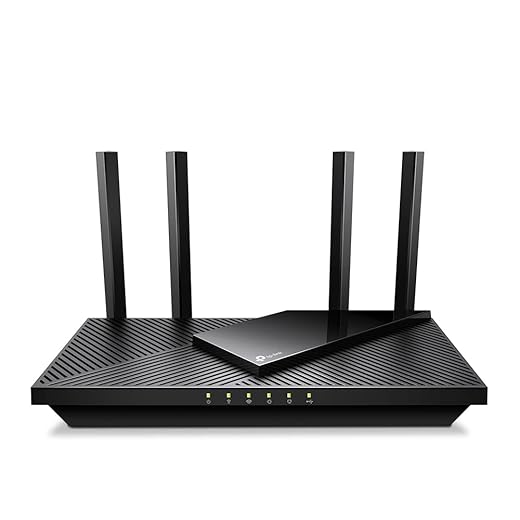
On the other hand, the 5GHz band is designed for speed. It’s perfect for tasks that require high bandwidth, such as online gaming or video conferencing. If you’re utilizing power-hungry devices like phones and laptops, this band can significantly boost your wireless performance. The TP-Link AX3000 WiFi 6 Router is often reviewed as one of the fastest routers, specifically tested for its ability to handle multiple devices without compromising stability.
Here’s a simple step-by-step breakdown to help you choose:
- Assess your needs: If your household is filled with smart devices that don’t demand high bandwidth, the 2.4GHz band might suffice.
- If you have a multi-person setup where everyone wants to stream or game, consider switching to 5GHz.
- Test both bands. Most routers allow you to enable both frequencies, giving you flexibility based on your current demand.
Remember, the SSID names for each band can help you easily identify which network to connect to. If you decide to install a secondary node or access point, ensure that it supports the frequency you need. In transitional zones of your home, mixing both bands could provide a well-rounded experience. For example, the NETGEAR EX3700 Wi-Fi Range Extender can give your network armor against weak signals in hard-to-reach areas.

In summary, understanding the differences between 2.4GHz and 5GHz bands proves to be crucial for achieving optimal Wi-Fi performance. Each band contains its own advantages, so reviewing the needs of your devices and household operations will help you make the right decision. By applying this knowledge, you can click into a faster, more stable internet experience that enhances your everyday activities.
Adjusting Channel Width for Maximum Throughput
When it comes to optimizing your Wi-Fi performance, adjusting the channel width can significantly impact your overall network speed and stability. In a modern environment like your smart home or office, having a stable connection is essential for all your devices, from computers to smart doorbells. The right configuration allows you to make the most of your technology, ensuring that all your devices stay connected without latency issues.
Many routers today, such as the Devolo units, come with the option to change the channel width between 20 MHz and 40 MHz. Increasing the channel width to 40 MHz can provide higher throughput, especially in areas with a lot of interference from neighboring networks. However, it’s crucial to check your specific environment; in densely populated streets or apartments, a narrower channel may work better to avoid blocking by other signals.
For instance, if you’re using an RV30C router, you might want to explore its settings. Adjusting the channel width could make all the difference in your network’s performance. Remember to review the configurations and remember the assigned DHCP settings for your devices. This change helps ensure that each device gets a good IP address without conflicts, making your smart-home setup more efficient.
Her’s an article for you to consider: if you have older devices that only support 20 MHz, it’s wise to maintain that setting. This ensures compatibility while preventing disruptions in your connected devices’ performance. On the other hand, if all your devices support higher throughput, increasing to 40 MHz could expose your network to better performance. So, finding that perfect balance is key.
Take the time to conduct a detailed review of your network layout. Are there any walls or furniture blocking the Wi-Fi signal? Are your computers far from the router? Taking note of these factors can help you make convenient adjustments and ultimately enhance your network’s capability to handle multiple devices at once without slowing down.
As you consider these adjustments, remember that technology is always evolving. New adapters and networking gear are released frequently, allowing for enhancements in your setup. Ensuring your network is up to date with the best practices will keep it functioning seamlessly for hours on end.
Implementing Quality of Service (QoS) for Prioritized Traffic
Implementing Quality of Service (QoS) is a crucial step for users looking to enhance their Wi-Fi performance, especially in crowded homes with multiple devices. This guide will detail how QoS can lock in better throughput for your most important tasks, ensuring that activities like video streaming or online gaming get prioritized over less critical functions, like file downloads or guest access.
In homes that contain multiple users, such as families with iPads and gaming consoles, it is essential to plan for different scenarios where network demands may peak. A dual-band router, like the TP-Link Archer AX6000, provides a reasonable price for multi-gig capabilities and is compatible with advanced QoS settings. This router is designed to handle increased traffic, reducing interference from other devices in the region.

TP-Link AX6000 WiFi 6 Router(Archer AX6000) -802.11ax Wireless 8-Stream Gaming Router, 2.5G WAN, 8 Gigabit LAN Ports, MU-MIMO, 1.8GHz Quad-Core CPU
Users should consider configuring their router’s QoS settings according to their needs. The interface is usually user-friendly and allows you to prioritize specific devices or types of traffic. For instance, if you have a multi-person household where everyone is online at the same time, setting up QoS can significantly increase performance when streaming on platforms like Netflix or during video calls.
Alternatively, for those who frequently work with large files, such as long video uploads or high-resolution images, implementing QoS can prioritize file transfer speeds and minimize delays. You can read more about how specific products, such as the NETGEAR Nighthawk RAX200, handle QoS efficiently to ensure that the primary traffic on your network runs smoothly, even in complicated environments with many devices.
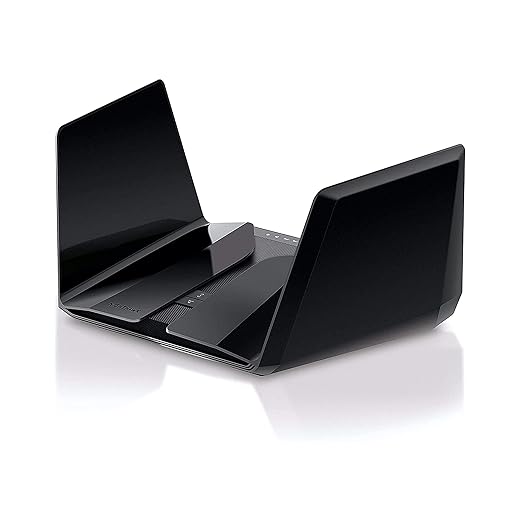
NETGEAR Nighthawk WiFi 6 Router (RAX200) 12-Stream Gigabit Router AX11000 Tri-Band Wireless Speed (Up to 10.8 Gbps) Coverage Up to 2500 sq.ft. and 50 Devices
Keep in mind that while QoS does enhance performance, it is just one part of the solution. For homes that often experience network problems due to interference, utilizing a mesh-networking system can further improve connectivity and lock in stable performance throughout your space. Investing in a reliable system will keep your home connected and provide a seamless experience for all users, whether it’s for work or play.
Disabling Unused Features to Streamline Performance
When setting up your Wi-Fi network, it’s essential to streamline performance by disabling unused features. Many modern routers and access points come packed with capabilities that, while impressive, may not be necessary for every user. For example, features like Bluetooth connectivity or guest networks can actually slow down performance if you’re not using them. If you live in a large apartment with demanding devices like security cams and downloaders, ensuring your network isn’t bogged down by unused functionalities can make all the difference.
Every two-year cycle, manufacturers release updated firmware that can enhance performance, but it’s crucial to check your router’s settings. Tools offered by your Internet Service Provider (ISP) can help users manage their networks efficiently. By accessing the admin panel, you can disable transitional options that you find unnecessary. For instance, if you have a basic need for a single-band network instead of a mixed-band setup, simplifying to one band can significantly improve your download speeds, potentially increasing them from 50 Mbps to 100 Mbps depending on your environment.
It’s also wise to separate your network into nodes for wired and wireless devices. This helps prioritize bandwidth, especially for demanding devices like an iPad or smart TVs. Keep in mind that every character in your network setup matters; even the preamble settings can impact connectivity. Some users assume that a slower connection is just typical, but often, the solution lies in these unnoticed features.
Using these tips, you can ensure your network operates at its peak. Whether you’re streaming videos or participating in video calls, every tweak you make contributes to a smoother experience. Don’t underestimate the impact of disabling unused settings; it’s a simple way to protect the performance of your network and enjoy faster download speeds when you need them most.
Optimal Placement of Your Router and Access Points
Finding the perfect spot for your router and access points is crucial for significantly enhancing your Wi-Fi performance. Following some basic guidelines can help you maximize coverage in your home or apartment. Start by placing your modem and router in a central location, allowing for equal distribution of the wireless signal. Avoid corners and areas that might expose your devices to blocking obstacles, like thick walls or large appliances.

NETGEAR Orbi Tri-Band Whole Home Mesh WiFi System with 3Gbps Speed (RBK50) – Router & Extender Replacement Covers Up to 5,000 sq. ft., 2-Pack Includes 1...
When you choose the right tools for enhancing your Wi-Fi, consider products like the TP-Link Deco X20 or the Netgear Orbi RBK50. These solutions are designed to deliver stable communication even in larger households. Their mesh capabilities mean you can cover more extensive environments, ensuring that every corner of your home receives reliable connectivity.

TP-Link Deco WiFi 6 Mesh System(Deco X20) - Covers up to 5800 Sq.Ft, Replaces Wireless Routers and Extenders(3-Pack, 6 Ethernet Ports in Total, Supports...
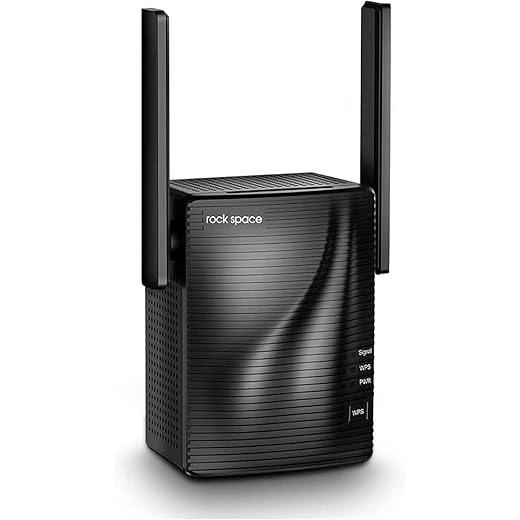
It’s important to keep your Wi-Fi devices away from equipment that may interfere with their signal, such as printers or microwave ovens. These appliances can create traffic that disrupts the wireless signals. To combat this, you might want to incorporate repeaters or adapters to expand your network further into hard-to-reach areas. For example, the Rockspace Wireless Range Extender is an excellent option for enhancing weak signals in your space.
For those who use smart-home technology, having a solid connection is vital. Ensure that you regularly check and update your router’s firmware, as this can significantly impact performance and security. Moreover, placing access points near high-traffic areas, like living rooms or home offices, will allow for the fastest internet experience for all clients connected to your network.
In environments where demand for Wi-Fi is high, like during work hours or family gatherings, consider the Linksys Velop MX8000. This product provides excellent speed and coverage, making sure that everyone can stay connected without lag. Remember, even in the smallest spaces, a little planning can lead to impressive results.

Linksys MX8000 Velop Mesh WiFi 6 System: AX4000, Tri-Band Wireless Network for Full-Speed Home Coverage, 5,400 sq ft Range (White, 2-Pack)
By taking these factors into account, you can create a wireless network that meets the needs of your household and delivers the reliable performance you deserve. Happy surfing!
Questions and answers:
What are the recommended locations for placing my router to achieve the best Wi-Fi coverage?
To optimize Wi-Fi coverage, place your router in a central location within your home. Avoid corners, as this can block signals. Elevate the router on a shelf or mount it on a wall to minimize obstacles like furniture. Additionally, ensure it’s away from electronics and appliances that can cause interference, such as microwaves and cordless phones.
How can I boost my Wi-Fi signal strength without purchasing new equipment?
There are several steps to enhance your existing Wi-Fi signal. First, check for firmware updates for your router, as these can improve performance. Next, adjust the antennae as some routers have adjustable antennas. Another effective method is to change the channel on which your router operates, as other networks may be causing interference on crowded channels. Finally, consider limiting the number of devices connected to your network to reduce congestion.
What settings on my router should I adjust to improve Wi-Fi performance?
To enhance performance, access your router’s settings and consider the following adjustments: select the 5 GHz band instead of 2.4 GHz for faster speeds if compatible devices are available; enable Quality of Service (QoS) to prioritize bandwidth for specific applications; and adjust the transmit power to strengthen the signal. Regularly reviewing security settings and enabling WPA3 can also help maintain a stable connection by preventing unauthorized access.
What factors can interfere with my Wi-Fi signal, and how can I mitigate them?
Common sources of interference include walls, floors, and appliances like microwaves. To reduce this interference, try relocating your router to a more open space. Use Wi-Fi extenders or mesh systems to amplify coverage in larger homes. Also, ensure that the router is set to a channel that has less congestion, which you can usually check in the router settings. Keeping your Wi-Fi network secure can also prevent unwanted devices from connecting, thus improving overall stability.
Do different Wi-Fi standards affect performance, and which one should I use?
Yes, Wi-Fi standards such as 802.11n, 802.11ac, and the latest, 802.11ax (Wi-Fi 6) significantly affect performance. Wi-Fi 6 provides faster speeds, better handling of multiple devices, and increased range compared to its predecessors. If all your devices support it, opting for a Wi-Fi 6 router is beneficial. If not, ensure your router uses at least 802.11ac for optimal performance with legacy devices. Always check device compatibility before upgrading.


